



If you have put many hours into a file or an essay and accidentally delete the file, Windows have integrated tools to bring deleted files back.
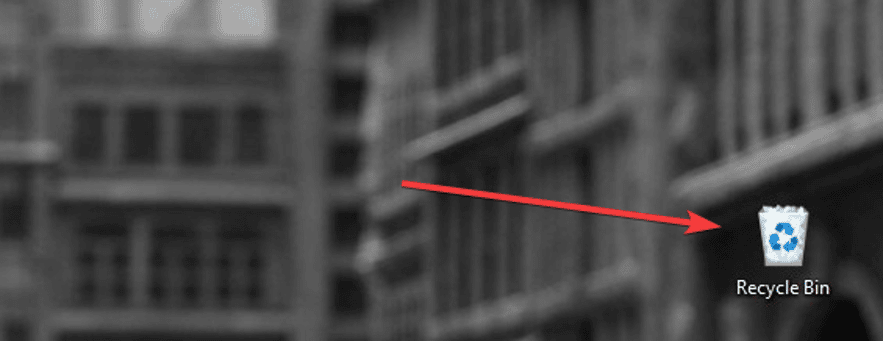
You can access the recycle bin easily either from a start-up search or just by clicking the icon on the screen.
There you can view the files that you deleted accidentally and decide whether you want them back or want to get rid of them completely.
What happens when you delete a file in Windows 11?
When you drag and drop a file into the recycle bin, Windows marks it as deleted and frees up space, but just the file’s entry is removed from the system.
Even if the file is in the recycle bin, it can still be recovered by using the recycle bin recovery feature.
How can I restore deleted files from Recycle bin on Windows 11?
1. Restore feature from Recycle Bin
What the Delete option does is move the files to the $recycle.bin folder.
A $recycle.bin folder exists on each drive on a local disk or external disk to save temporarily deleted data. Here’s how to recover deleted files from recycle bin:
- Find and open the Recycle Bin on your desktop.
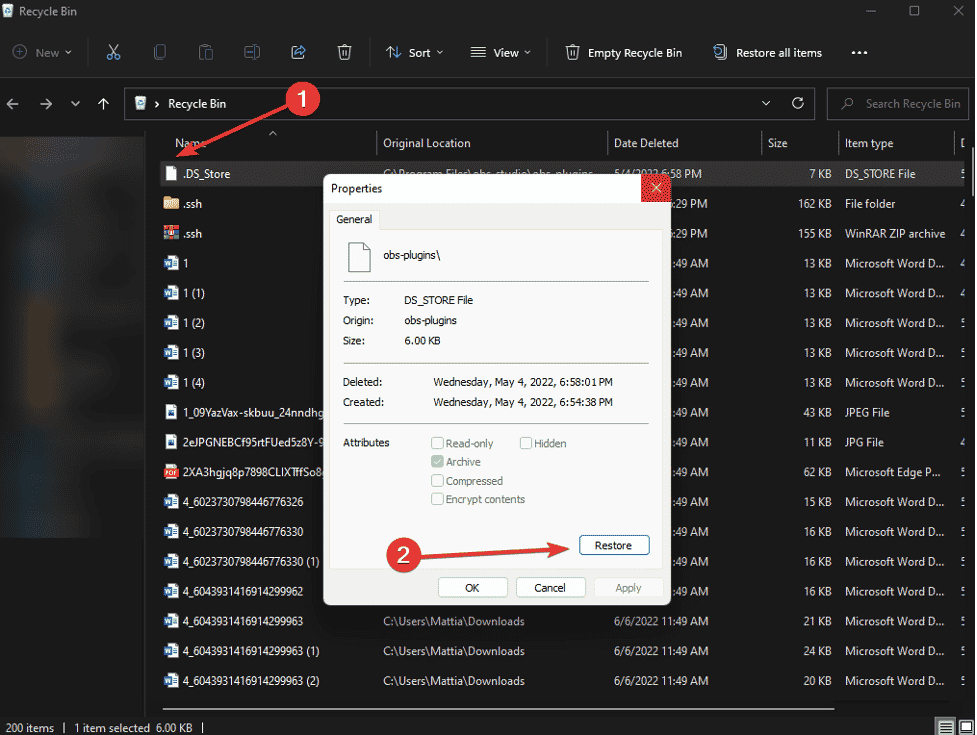
- Click on the files you want to restore and choose Restore.
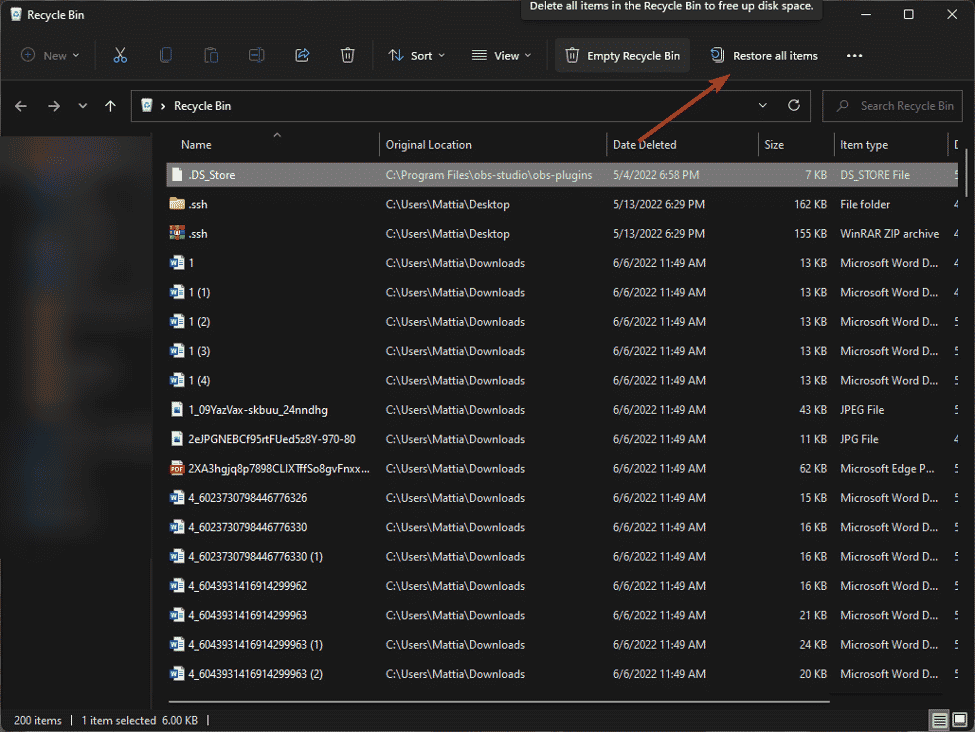
- If you need to restore all the items and files, click Restore all items on the top bar.
2. File History
In Windows 11, a feature called File History allows users to receive a backup of all the data in specific system directories, such as Documents, Music, Pictures, Videos, and Desktop folders.
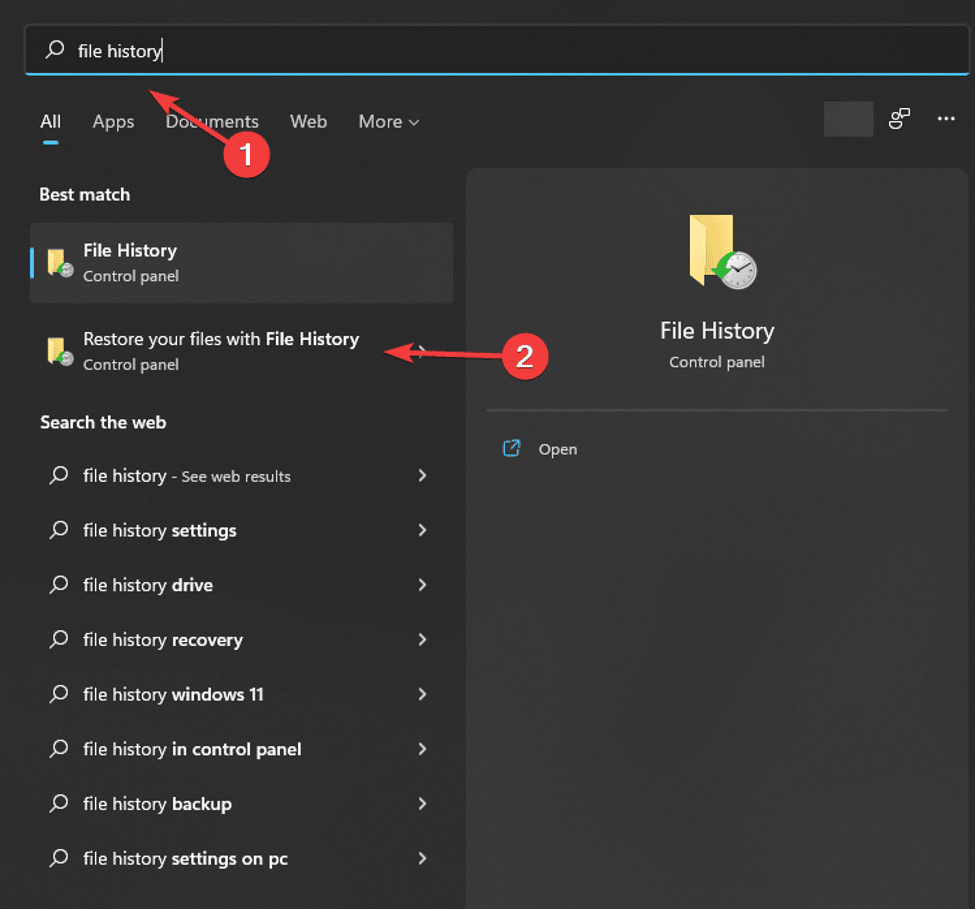
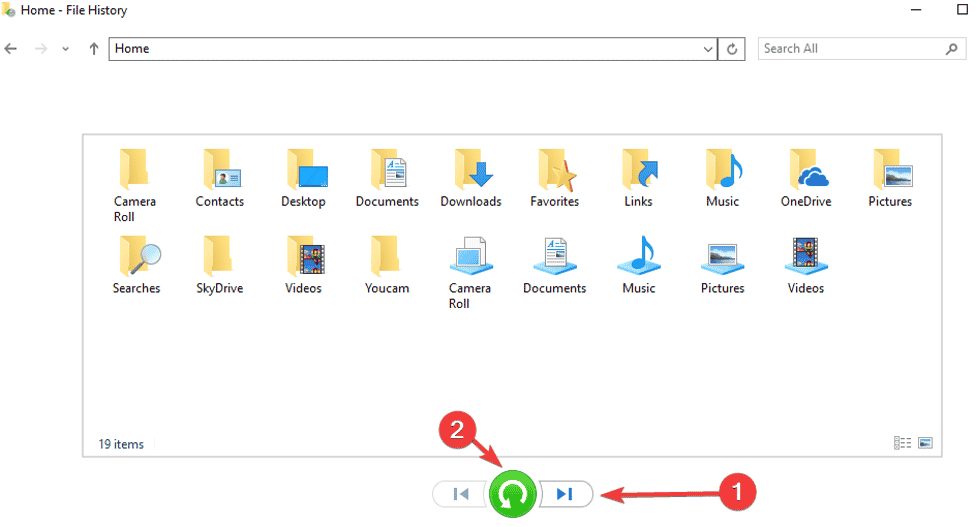
- Search for File History in the search bar and click Restore your files from File history.
- The File History will display all of the backup files and folders available to recover. You can use the arrows to select different versions. Select the version that includes all the files. Click the Green icon to restore the files.
3. Use Stellar Data Recovery Professional
You can use Stellar Data Recovery Professional for Windows to bring back deleted files.
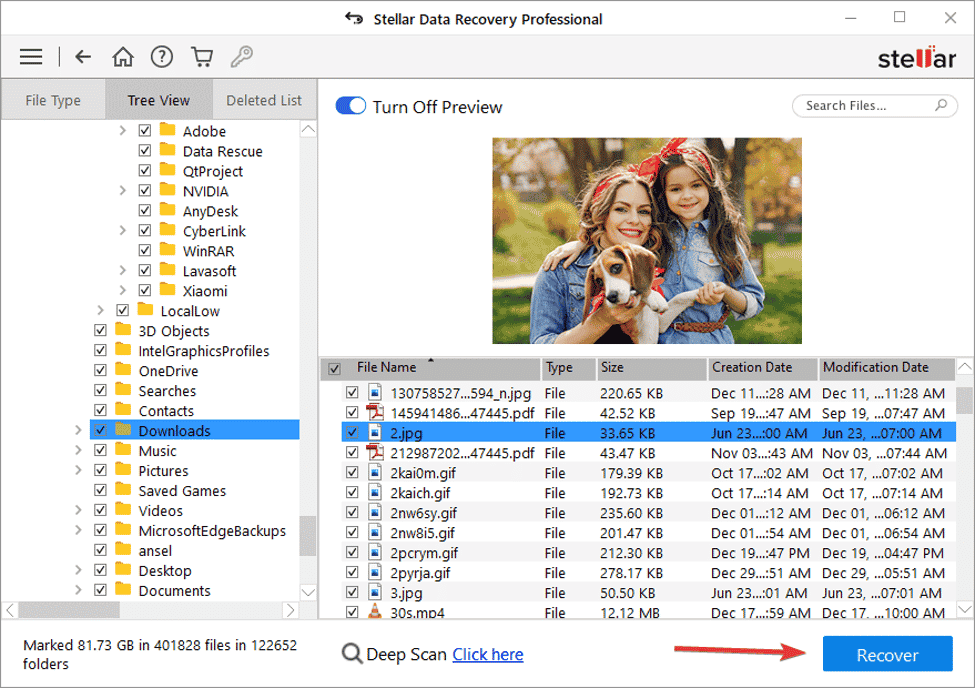
The application will scan the selected disk and preview the files which you can recover.
- Install the application from the official website.
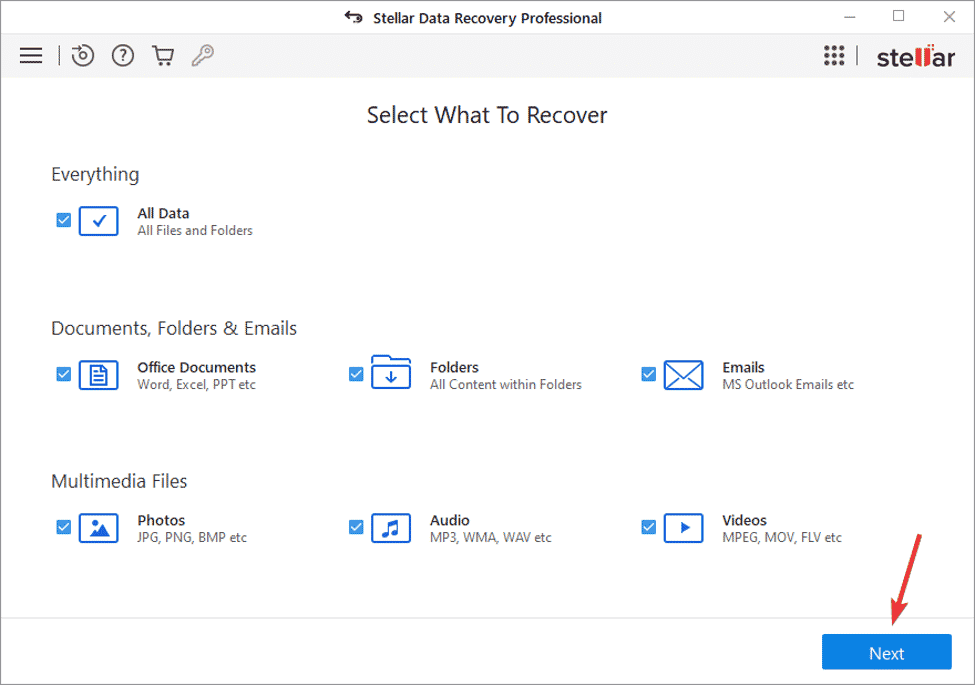
- Open the application, select the type of data that you want to recover, and click Next.
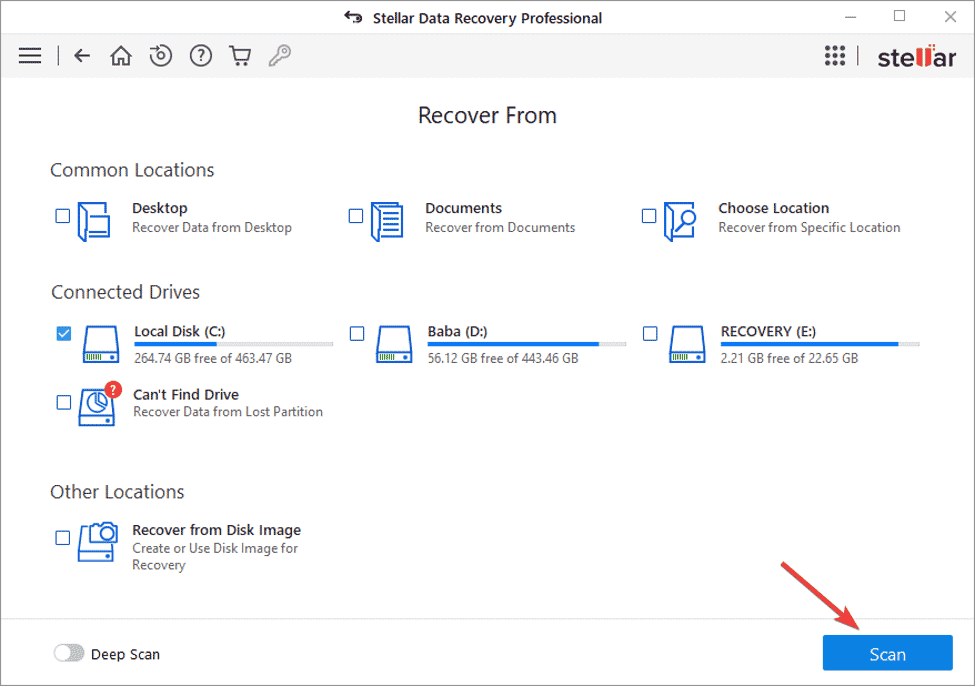
- Select the folder location or drive volume and click Scan.
- Select files after the scan and click Recover to save recovered data.
Can I recover files after emptying the recycle bin?
Stellar Data Recovery Professional for Windows can find and recover permanently removed files.
This means that even if you have emptied the recycle bin or formatted your hard disk, this application can bring back your files.
Undo your mistake!
Installing a backup application can be a wise investment. The backup applications will take a full backup of your data, ensuring that you will never lose the important files.
Sometimes the recycle bin has been emptied, and you can’t use recycle bin recovery. This is where backups come in handy.
But even if you have deleted the files and have no backup, Stellar Data Recovery Professional has got your back.
